Guide · Built for studios
Automatic backups for DaVinci Resolve Project Server.
How to back up a shared PostgreSQL database on a schedule, keep an encrypted copy off the server, and get your whole team working again fast when something goes wrong. No scripts required.
Why a Project Server needs its own backups
In collaborative DaVinci Resolve, every colorist, editor and assistant works from one shared PostgreSQL database, usually managed with Blackmagic's DaVinci Resolve Project Server app. That's what makes collaboration possible, and it's also the risk: if that one database is corrupted or lost, everyone stops at once.
Common causes include a failed server drive, a bad update, an accidental deletion or a crash in the middle of a write. Individual project backups on each workstation don't help here. You need a backup of the whole database, kept somewhere other than the server.
A good Project Server backup:
- captures the entire database, with every user's projects, in one file
- runs on a schedule, without anyone having to remember
- keeps a copy off the server, ideally off-site
- can be restored quickly, without touching the original
- tells you when it stops working, for example after a password change
Your options
1. Manual backups from Resolve
You can back up a PostgreSQL project library by hand from Resolve's Project Manager, or from the Project Server app. It's built in and free, but someone has to remember to do it, and the file lands wherever it's saved, often on the same machine.
2. Community scripts
Resolve doesn't schedule full Project Server backups by itself, so many studios use free scripts, usually from GitHub, that run PostgreSQL's pg_dump tool on a timer. They can work well, but:
- they need command-line setup on each server
- they're often written for specific Resolve, PostgreSQL and OS versions, so check compatibility before trusting them
- off-site copies, encryption and failure alerts are usually up to you
- if a script quietly stops, after an update or a password change for example, nobody may notice until a restore is needed
3. Resolve Vault
Resolve Vault does the same job with a normal desktop app on macOS, Windows or Linux. It backs up the whole PostgreSQL database on a schedule, encrypts it, saves it to disk and uploads it to Google Drive and Dropbox. It uses PostgreSQL's own tools, which come bundled with DaVinci Resolve Studio, so there's nothing extra to install on the server.
Set up automatic Project Server backups with Resolve Vault
- Install Resolve Vault on a computer with DaVinci Resolve Studio that's connected to your Project Server database, and activate it with your license key. See Install and activate Resolve Vault.
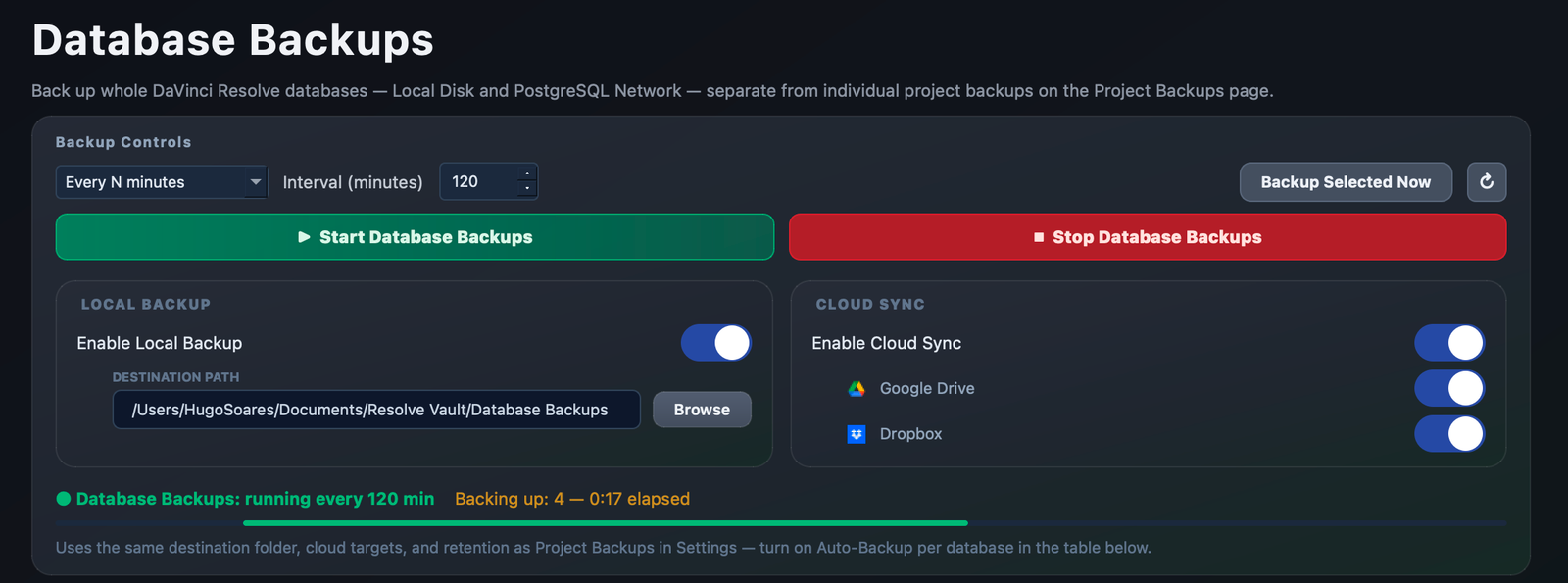
- Open the Database Backups page. Resolve Vault lists the databases Resolve knows about. Your PostgreSQL (Network) databases appear on the right, next to any Local Disk databases.
- Toggle on the databases to protect. Resolve Vault uses the connection details Resolve already has saved. If there's no saved password, or it's been changed, Resolve Vault asks for it, checks it against the server and saves it.
- Choose a schedule. Pick Every N minutes (from 1 to 1440), or a Custom schedule with set times, for example every night at 21:00 and every Monday morning.
- Turn on cloud sync for Google Drive, Dropbox or both, so a copy always exists off the server. Connect them once in Cloud Manager.
- Click Start Database Backups. The selected databases are backed up straight away, then on your schedule. Each backup is saved as an encrypted
.rvdb file, and the History list shows whether it's on disk, in Google Drive and in Dropbox.
No silent failures
If the server password changes, scripts usually just fail quietly. Resolve Vault asks for the new password instead, so backups don't stop without anyone noticing.
Restoring a Project Server backup
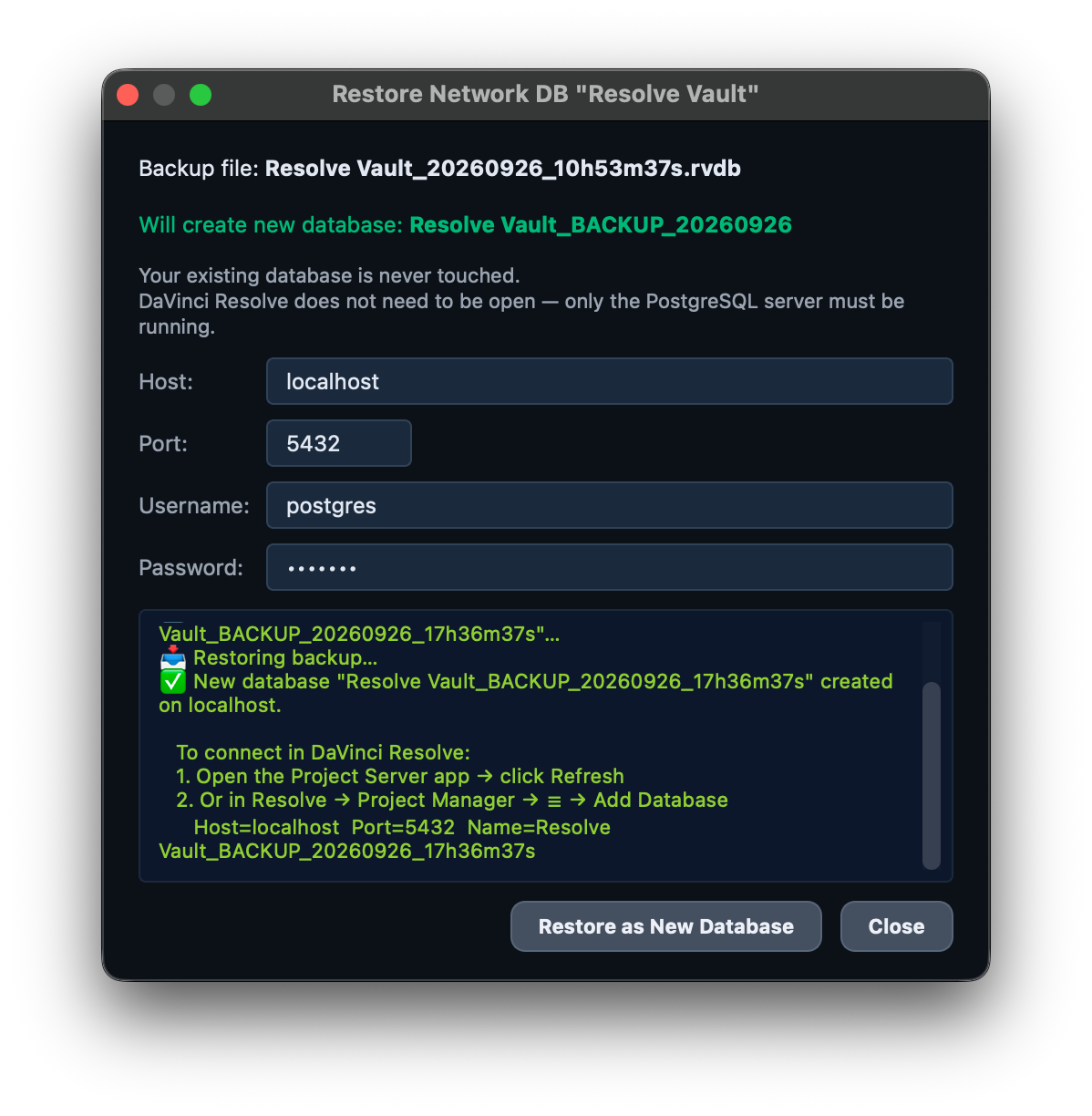
- In Resolve Vault's database History, click Restore next to the backup you want.
- Check the server details and the name of the new database, then click Restore as New Database. DaVinci Resolve doesn't need to be open; only the PostgreSQL server must be running.
- Open the Project Server app and click Refresh, or in Resolve go to Project Manager → ☰ → Add Database, and connect to the restored database.
Your original is never overwritten
Every restore creates a brand-new database with a name like MyDB_BACKUP_20260926. Check its contents in the Project Manager before switching the team over.
Full details are in the Docs.
Best practices for studios
- Back up at least daily, and more often on busy days. Hourly or every couple of hours is common for active sessions.
- Keep at least one copy off the server, and ideally off-site in the cloud.
- Test a restore every so often, into a new database, so you know the backups work before you need them.
- Back up media separately. A database backup holds the projects, not the original video, audio and graphics files.
- Keep individual project backups too. Resolve Vault can also export each user's open project as a
.drp file, which is handy for rolling back a single project. See every DaVinci Resolve backup option compared.
Frequently asked questions
Does DaVinci Resolve back up a Project Server database automatically?
No. You can back up a PostgreSQL project library by hand from the Project Manager, but Resolve doesn't schedule full database backups of a Project Server on its own. Studios use community scripts or an app such as Resolve Vault to automate it.
Do I need to install anything on the PostgreSQL server?
No. Resolve Vault uses PostgreSQL's own backup tools, which come bundled with DaVinci Resolve Studio, and connects to the server with the details Resolve already has saved.
Does restoring a backup overwrite the live database?
No. Resolve Vault always restores into a brand-new database, so the original is never touched. DaVinci Resolve doesn't need to be open during a restore; only the PostgreSQL server must be running.
Are Project Server backups encrypted?
Yes. Resolve Vault encrypts every PostgreSQL backup into an .rvdb file before saving it to disk and uploading it to Google Drive or Dropbox. Backups are restored through Resolve Vault.
Protect your whole team with one backup.
One-time license for macOS, Windows and Linux. Works with your existing Project Server.